


Senior Salesforce Developer / Tech Lead / Architect. Working on Salesforce Platform since 2011.
https://salesforce.stackexchange.com/users/56063/shamina
How it all started
Did you ever find it fun to do a data migration for a Salesforce project?
Hmm, pretty sure the answer is mostly “No” and I can agree on this.
But I actually found it fun after discovering dataimporter tool.
From no CSV/Excel files manipulation to “magic Ids” for dynamic mapping of parent lookup Ids onto child records, dataimporter is truly a life saver.
Other tools exist for org-to-org migration but none were a fit for our use case and especially hard deadline:
➡️migrate data from one Salesforce org to another in less than 1 week; which includes migration of ContentVersion, ContentDocumentLink (link files to record) and data from more than 10 other objects (roughly around 1 millions records).
Talend ETL was also considered but we had too limited time to build the jobs.
A few days before starting the project, I came across a LinkedIn post talking about dataimporter and realized soon enough that it is the perfect solution😌
Security
Before we dive deeper into the features worth sharing here, let’s talk about security first 🕵️♀️
📢Security is at the heart of dataimporter; with AES‑256 encryption at rest, SOC 2 Type II compliance and many more. Data residency options are in US, Germany and Australia.
Read more about security features here and on the trust center.
While you can still use CSV files for a Salesforce data migration, the power of dataimporter is to migrate data directly from a source Salesforce org to a target Salesforce org without any files manipulation.
The default data retention days is currently 14 but you can adjust the settings

Login
You can either register with email or use OAuth with your Salesforce login: https://help.dataimporter.io/getting-started/register-with-oauth
Migration template
Dataimporter literally has a Salesforce to Salesforce migration feature using Job Migration template.
📢The 85% time saving is spot on actually; it took roughly less than 5 days to import 1 million records for 10+ objects with jobs on multiple iterations.
Note: migration template feature is available as from the Enterprise plan
Data mapping
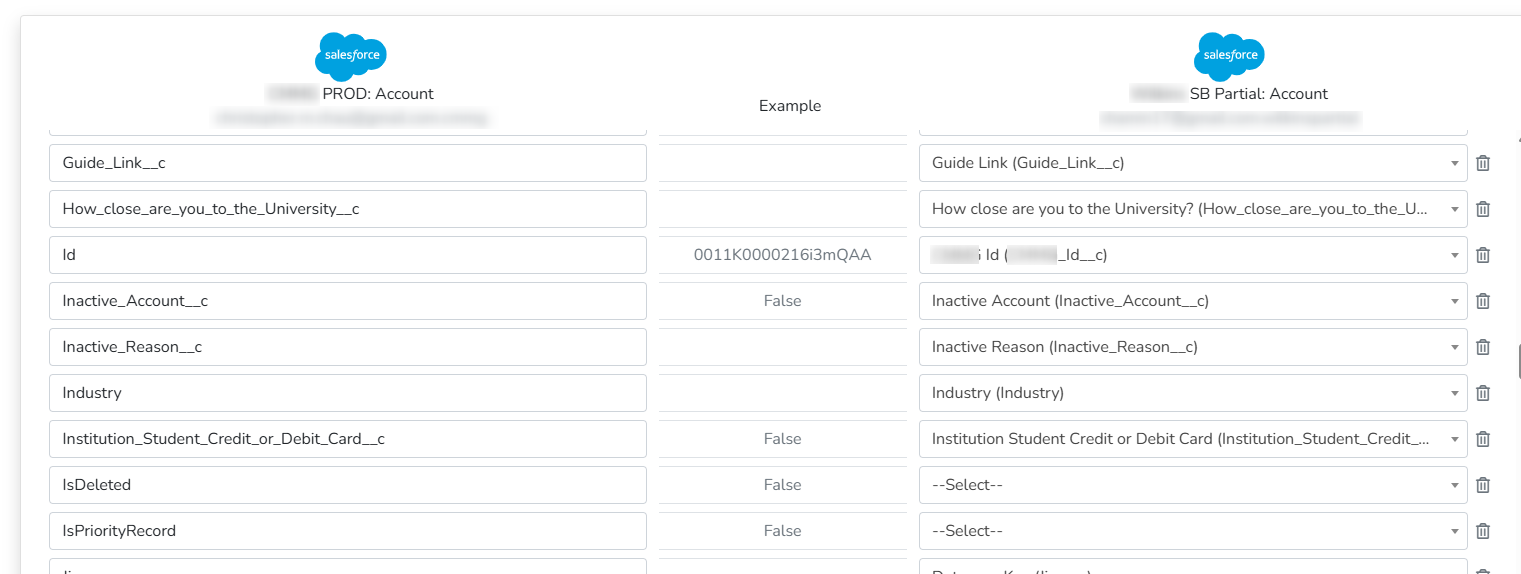
If you are migrating data into the same object as the source (e.g. Account to Account), all editable fields are auto-mapped. You can still review each mapping and remove any if necessary.
You can also migrate into a different target object than the source and its up to you to map each field.
Formulas
Definitely, one of my favorite features 🤩
Formulas gives the flexibility of “building” a custom value for a particular field. There can be many use cases for using them, here are 2 main ones that came in handy:
Create a formula that returns a default owner Id if the current owner is inactive in the source org. Then use the formula field in the owner field mapping
IF([Owner.IsActive] == "False" , "005XXXXXXXXXXXXXXX" ,[OwnerId])Assign record type by developer name where the developer name can be different in target org. You can use the MAP function here with the relevant mapping of source to target value along with a default value if no match is found.
MAP([RecordType.DeveloperName], {"Vendor": "Vendor_Client", "Other_Account":"Other_Account"}, "Other_Account")

Magic Id is truly magical ✨
📢Note that this feature is only available in migration template
It does the relationship link between 2 records whether it is a lookup or master-detail. This is especially helpful for objects that do not allow external id, like ContentDocumentLink.
Even if an external id exist on the parent object, the magic id can also be helpful when we want to load for example accounts and its related opportunities in same job then instead of using external id, the magic Id will link opportunity with its direct parent account.
In addition to the official Magic Id documentation, here is how you can use it to load opportunities and files attached to opportunities.
The migration template job includes the 3 objects:
Opportunity,ContentVersionandContentDocumentLink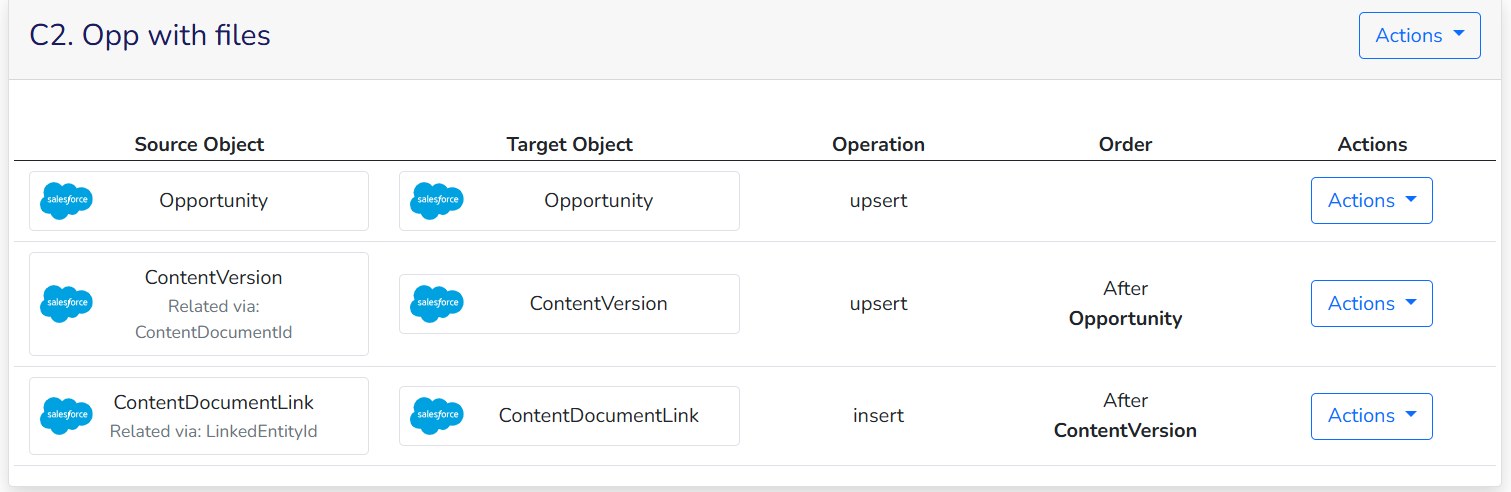
Then on the
ContentDocumentLinkobject mapping, mapLinkedEntityIdwith opportunity Id via Magic Id. The tool is intelligent enough to insert the correspondingContentDocumentfirst before loading theContentVersionand theContentDocumentLinkfield mapping uses the newContentDocumentIdcreated.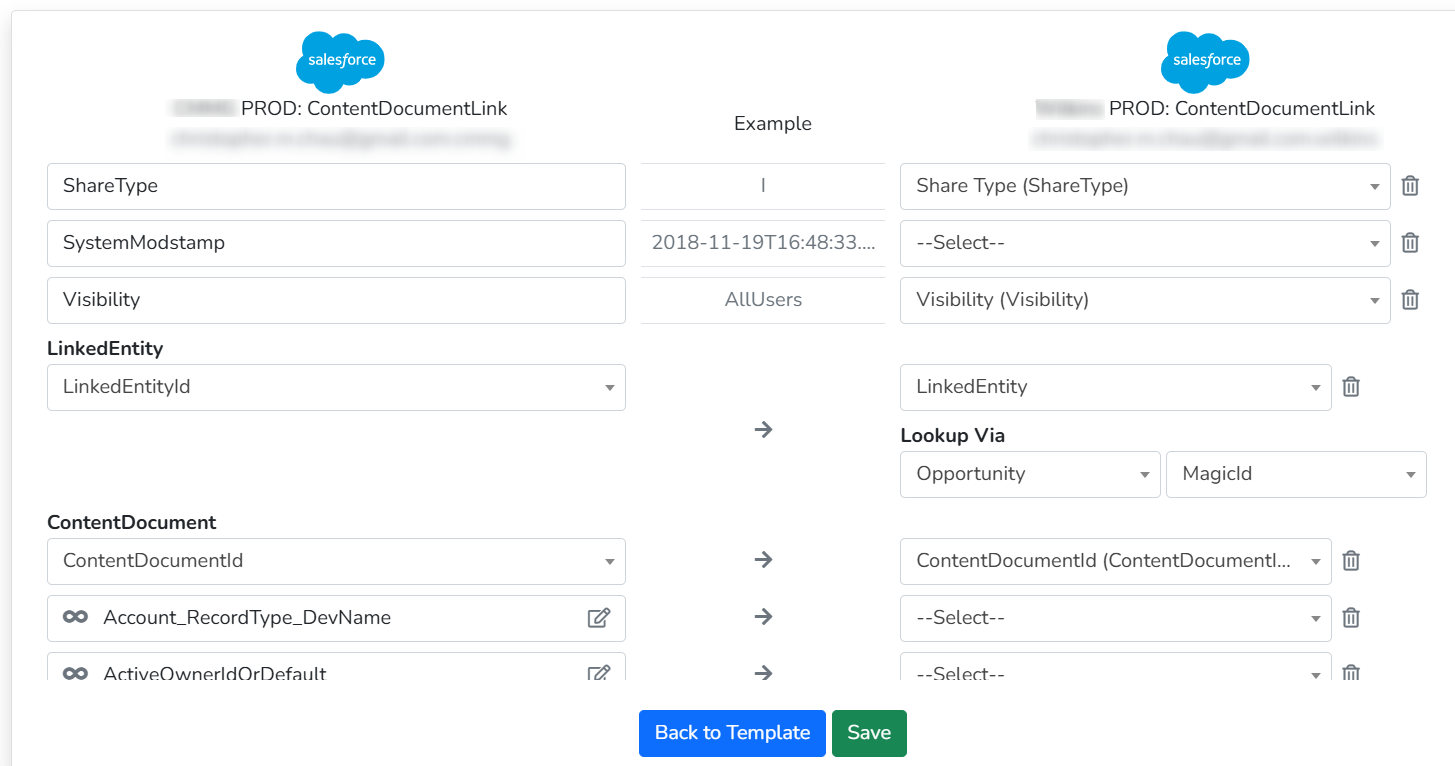
Toggle automation controls 🤯
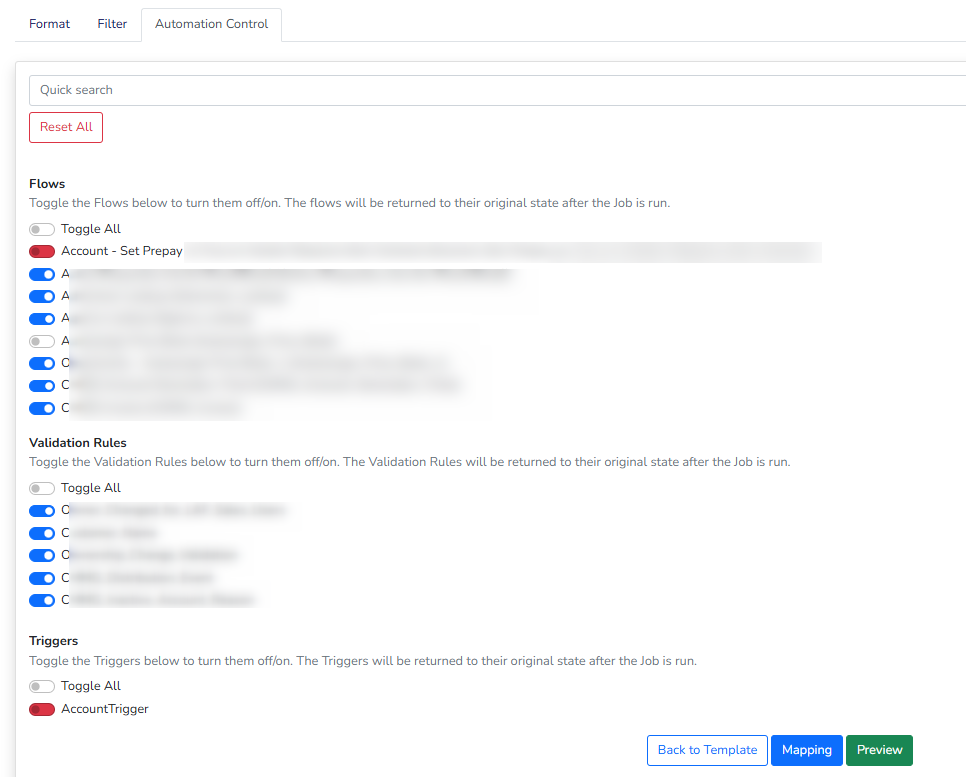
This feature is really mind-blowing. The automation control allows you to disable or enable (default), automations likes validation rules, flows or triggers before running the job import.
For our use case, it was very useful to disable managed package validation rules because the rules were not valid for historical data and they cannot be edited to add bypass criteria.
📢Use this feature carefully: Keep in mind that disabling an automation is org-wide and affect all users. The tool basically calls metadata API first to disable the automation and once the data loading is done, it calls metadata API again to re-enable the automation.
Good to know
Task and polymorphic relationship
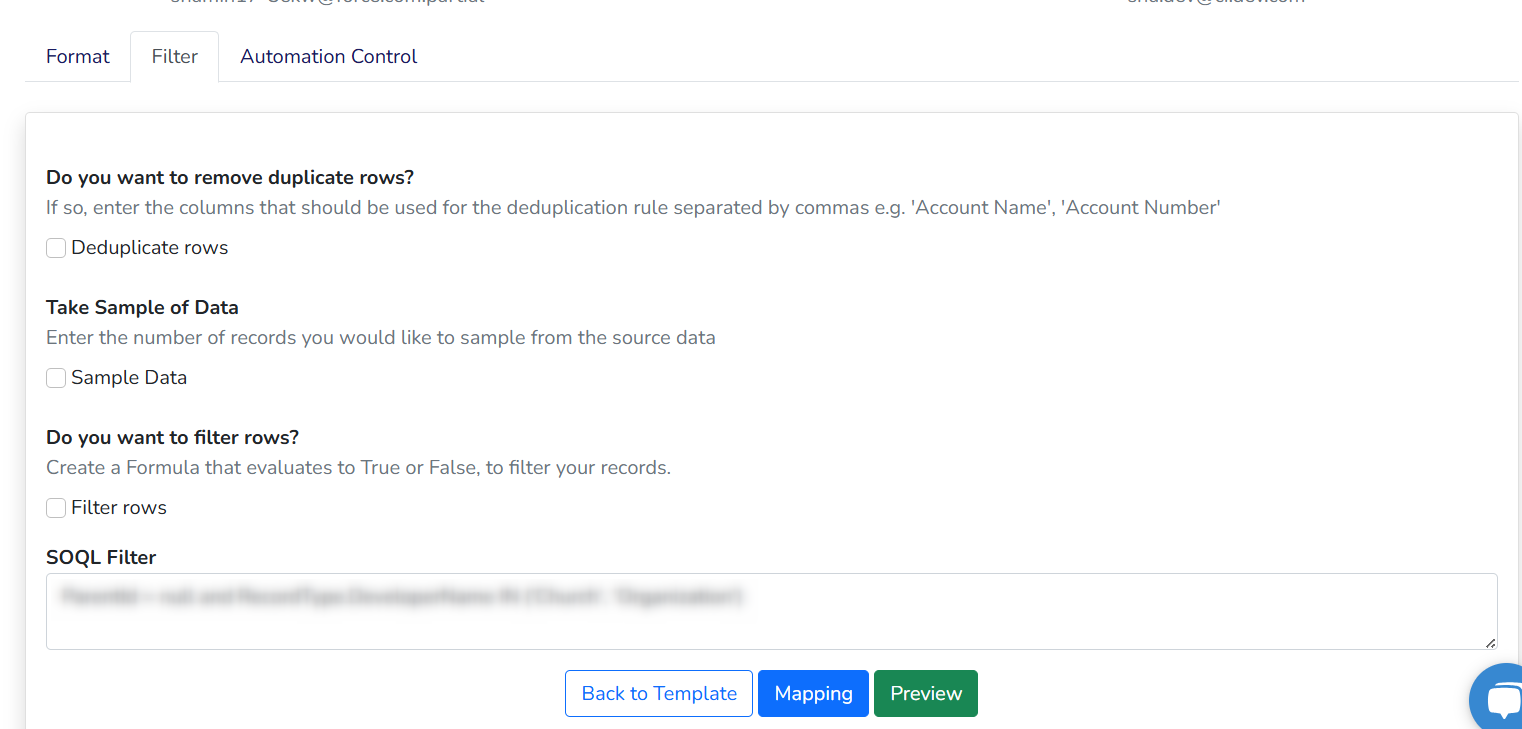
Task are one of the trickiest object to load because it can be linked to many objects. The filter section of migration template helps to load tasks by parent object. In this case, we are using a custom external id field on account to related to the task byWhatId.
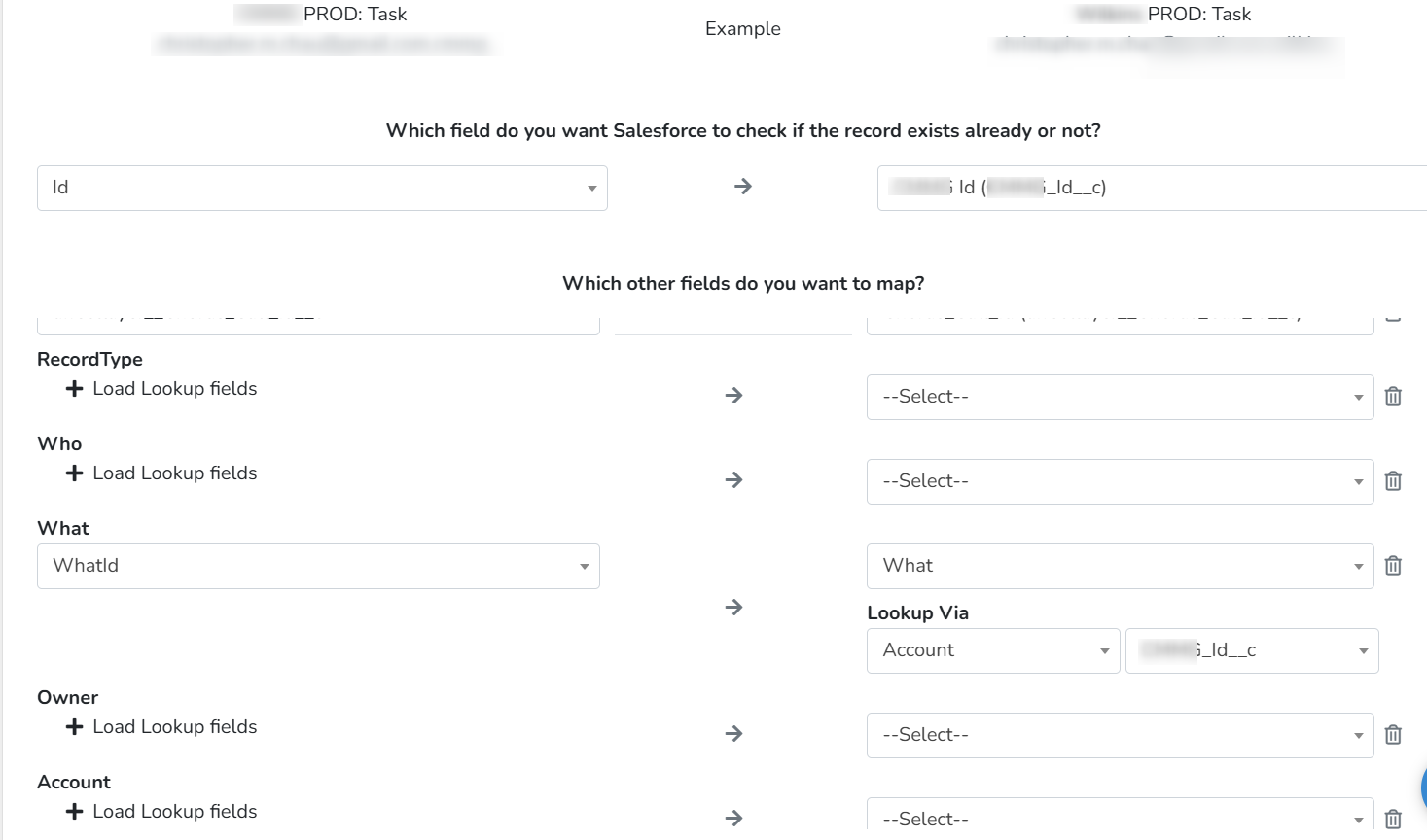
Then records are filtered by What.type or Who.Type , for example the SOQL filter can be What.type = 'Account' to ensure only tasks related to accounts will be queried and imported.
Campaign influence
If you ever have to migrate campaign influence from one org to another, its recommended NOT to map primary campaign when loading opportunities because this auto-creates campaign influence records.
So better un-map the primary campaign field when loading opportunities. Then create another job to load campaign influence, add relationship mapping to opportunities and campaign and ideally add an external id on campaign influence to rerun the job if needed.
Multi-object loading
Within a single job, you can choose to load parent object and select the relevant child objects related to the immediate parent. This also works for same object with multiple child levels, like an Account Hierarchy. More information about multi-object here
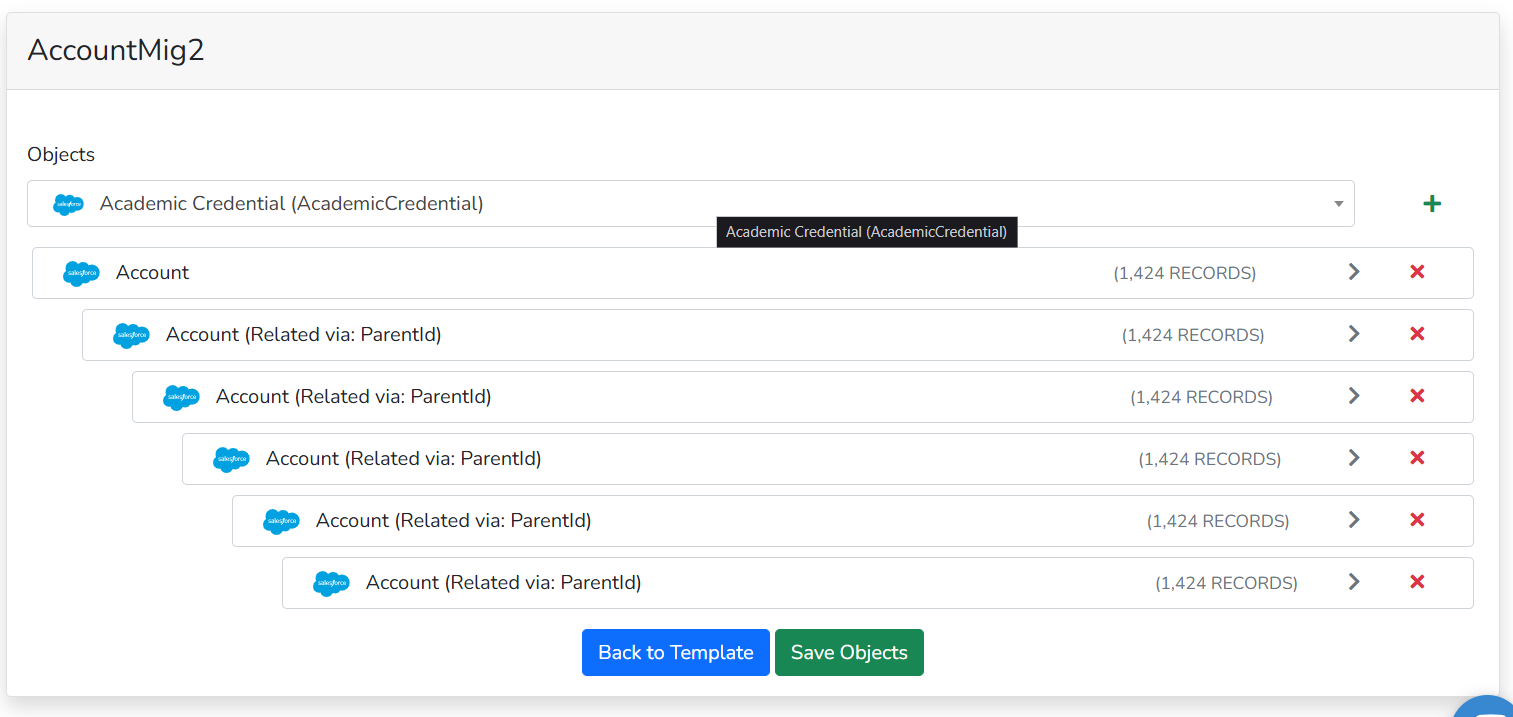
Then apply SOQL condition in filter section to drill down the hierarchy and ensure that parent is loaded first. So for first account object level, the filter will be ParentId = null, then second level of account object ParentId != null and third level Parent.ParentId != null, etc.
Import Results
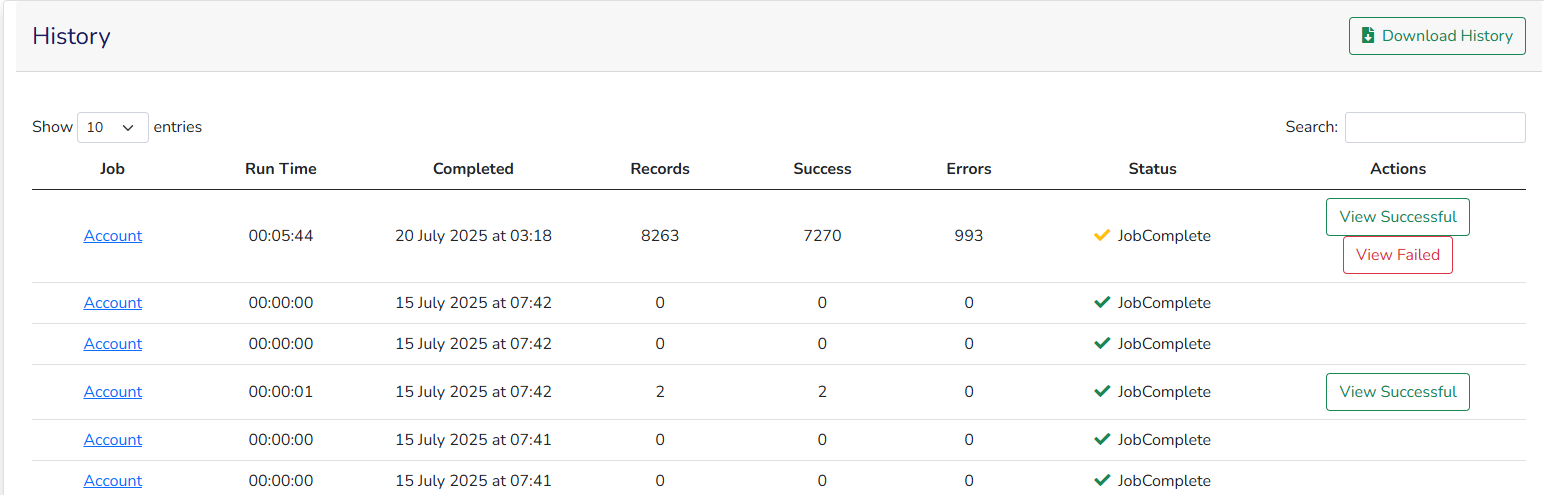
The history section tracks jobs based on the data retention settings. For failed job, rollback is possible for Insert operation.
Demo
This video on LinkedIn from dataimporter founder shows how to load multiple objects and related files (ContentDocument and link to record via ContentDocumentLink).
Pricing
7-day trial is available on Entreprise plan and refer to the pricing page for more information
Documentation
The official help center documentation is accessible here